Use Steam Wishlist Categories to Catch the Right Sales
Steam wishlists have a "categories" feature that lets you put your own named labels on games. Used well, it means that even with hundreds of games on your wishlist, you reliably hear about sales on the ones you really want, and only those.
What categories can do
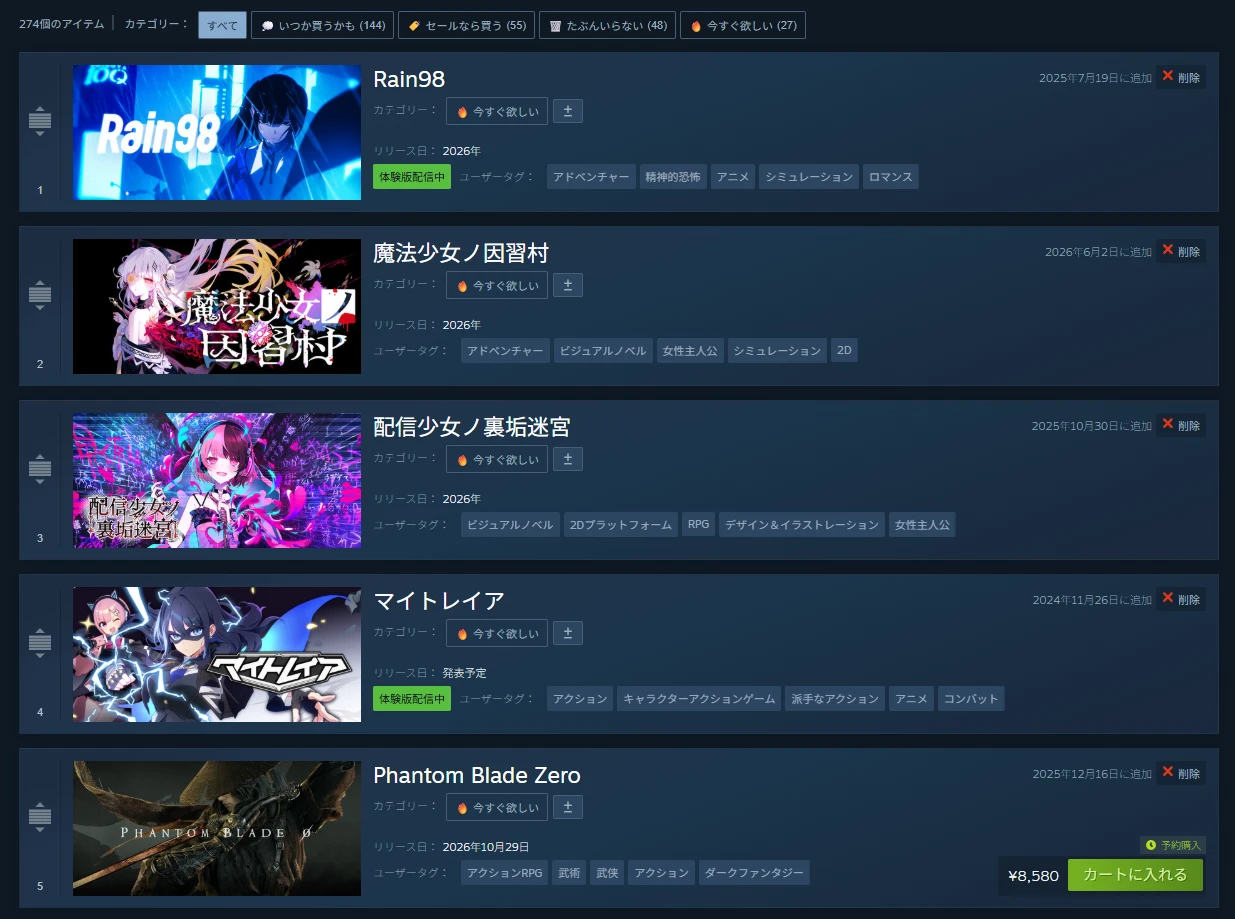
- Filtering: tabs above your wishlist show one category at a time.
- Multiple labels: a game can have any number of categories, such as both "Waiting for a sale" and "Co-op with friends".
- Notification filtering: sale and other alerts can be limited to games in the categories you choose.
A few categories come built in, and you can create your own. You add or remove them from each game's category field on the wishlist page.
The real win: filtering notifications
In Steam's notification settings there's a section for wishlist activity. It lets you choose how you're told (banner, mobile, email and so on) about events like these:
- A wishlisted game goes on sale
- A game is released, or leaves Early Access
- A demo becomes available
Below that is a setting to only notify you about selected wishlist categories. Left at "All", you hear about every game on your wishlist. Pick categories, and you only hear about games in them.
For example, select only "Want it now" and "Buy on sale", and nothing else will ping you when it goes on sale. Even a wishlist of hundreds of games then only notifies you about the ones you care about.
A tier setup that works
You can create any categories you like, but splitting by how much you want each game works best with notification filtering.
| Category | Notify? | Why |
|---|---|---|
| 🔥 Want it now | On | You want to know the moment it's on sale |
| 🏷️ Buy on sale | On | Worth considering when the price drops |
| 💭 Maybe someday | Off | No need to hear about it every sale |
| 🗑️ Probably skip | Off | You'll remove it eventually |
"Maybe someday" games still show their discounts on the store while they're on your wishlist. Turning their notifications off just keeps every sale from tugging at you.
Tagging hundreds of games by hand is a chore
The catch is the effort of tagging games one at a time. A 200-game wishlist means 200 edits. And deciding how much you want each game means comparing them.
With Steam Wishlist Ranker, once your ranking is done, you can tag every game with a category named after its tier at the same time you apply the order to Steam.
- Make your ranking in the tool. The results are split into four tiers.
- Press "Apply to Steam" on the results screen and turn on "Also add Steam categories".
- Click the bookmark it creates while on your Steam wishlist page. It reorders your wishlist, then adds the categories.
- In Steam's notification settings, select "Want it now" and "Buy on sale".
The tool never touches categories you made yourself, so your existing ones stay. On later runs, only games whose tier changed get their category swapped.
Summary
- Categories let you filter your wishlist with tabs.
- Choosing which categories notify you means you only hear about sales you care about.
- Splitting by how much you want each game pairs well with notification settings.
- For a long wishlist, ranking first and tagging everything at once is the easy way.