How to Use Steam Wishlist Ranker
Last updated: October 31, 2026
Steam Wishlist Ranker is a free tool that sorts your Steam wishlist into "what to buy next" order. You just compare games and pick the one you want more. Even with hundreds of games, a full ranking takes a few minutes, and you can apply it straight to your Steam wishlist. This guide walks through the whole flow with screenshots.
Before you start: make your wishlist public
The tool reads the wishlist information that Steam makes public. A private wishlist can't be loaded, so check this first.
- On Steam, open your profile and click "Edit Profile".
- Open "Privacy Settings" and set "Game details" to "Public".
You never log in to Steam or enter a password on this site.
1. Paste your wishlist URL
On the home page, press "Open my wishlist". If you're logged in to Steam in that browser, your own wishlist opens. Copy the URL from the address bar, paste it into the "Wishlist URL" field, and press "Fetch & Start".
- Both number URLs like
store.steampowered.com/wishlist/profiles/7656…/and custom URLs like/wishlist/id/yourname/work. - A profile URL or your SteamID64 (a 17-digit number) works too.
Prices come from the Steam store of your country, and game names appear in the language you pick at the top right.
2. Tap the games that catch your eye
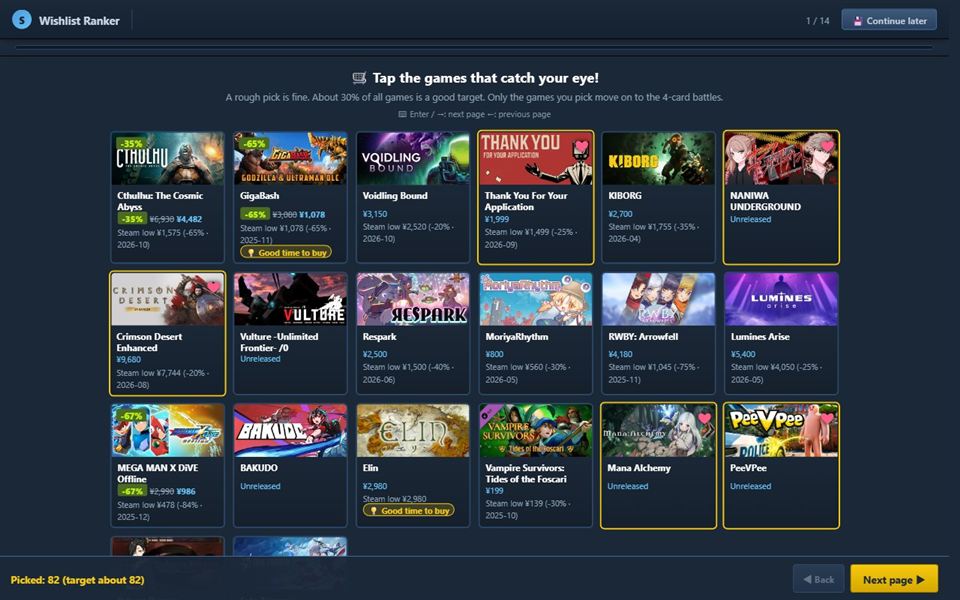
Your wishlist appears as a grid. Tap the games you really want, about 30% of the list is a good target. These picks become the core of the matches that follow. Don't overthink it; go with your first impression.
3. Pick from 4 (qualifiers)
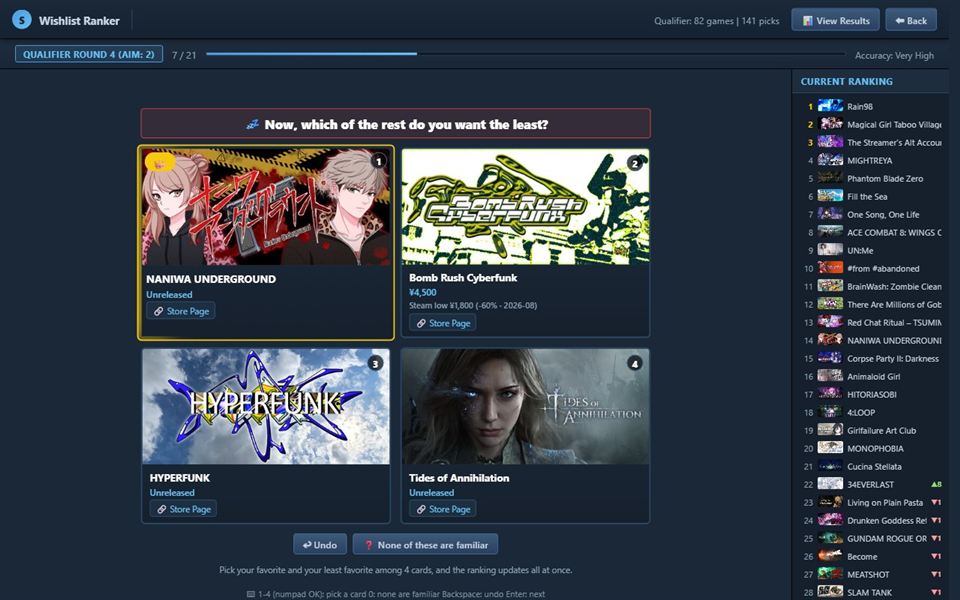
Four games appear. Tap the one you want most, then the one you want least. Those two taps tell the tool almost the whole order among the four, so the ranking forms much faster than comparing games one pair at a time.
After each lap you can do one more lap or move on to the top matches. Once the top games stop changing much, the ★ recommended mark moves to "move on".
4. 1-on-1 duels, and challengers
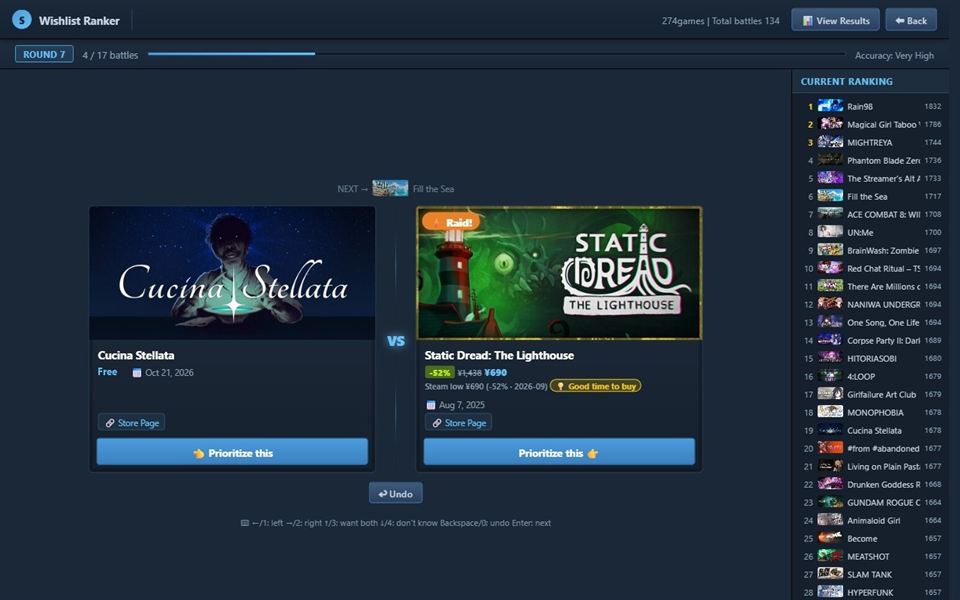
The top games from the qualifiers face off 1-on-1. Just pick the one you want more. Now and then, a game you didn't pick earlier crashes in as a challenger. Challengers are drawn from games that sat high on your original Steam list, games on sale, and games you added recently.
Each win sends the challenger up against a stronger opponent, and after two wins its third match is a title match against your #1. One loss ends its run. This is how forgotten favorites get a second chance.
5. The final bracket
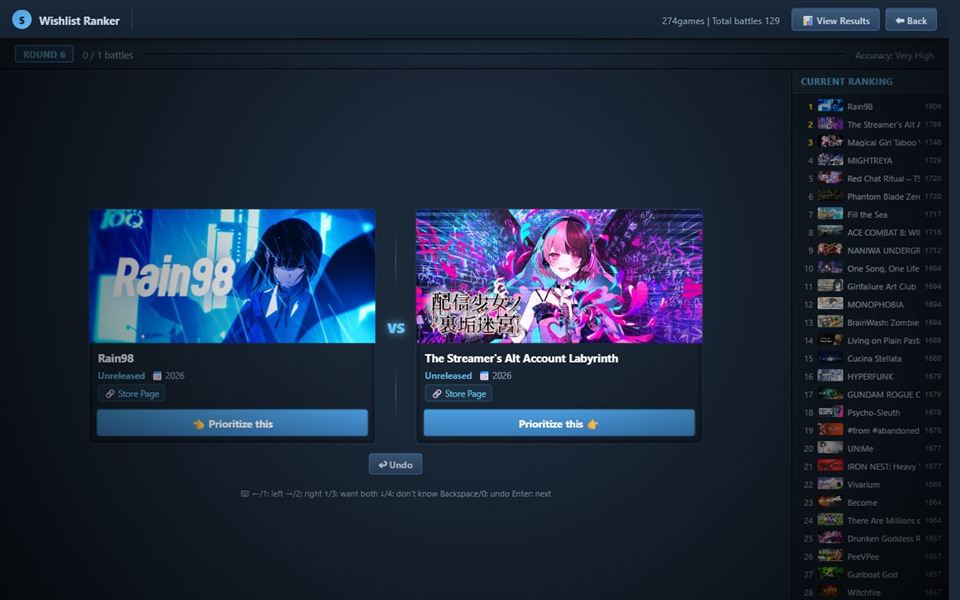
Your top 16 play a seeded bracket. The winner is the #1 of your wishlist.
6. Finishing touches: middle sort and the weakest showdown
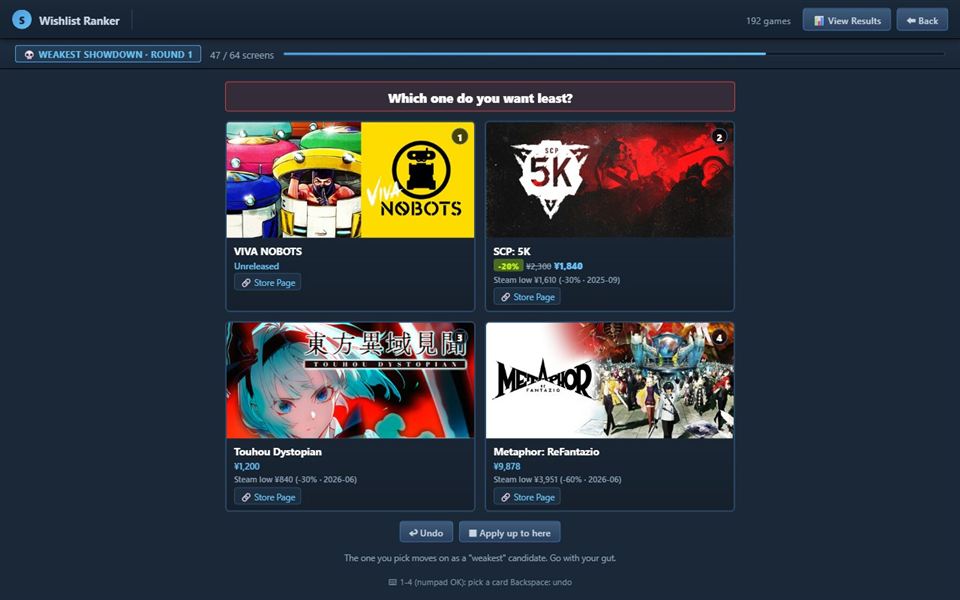
After your #1 is decided, a finishing menu appears. Both steps are optional, but they tidy up the middle and the bottom of the list.
- Middle sort: the rest of your early picks go through knockout groups of 4, where you pick the most wanted.
- Weakest showdown: everything else goes through groups where you pick the least wanted. The ones that keep losing land in the "Probably skip" tier.
If you stop partway, everything you've done so far still counts.
7. See your results

Every game is listed in order and split into four tiers.
| Tier | Meaning |
|---|---|
| 🔥 Want it now | Top. Your next purchases |
| 🏷️ Buy on sale | Middle. Worth buying at a discount |
| 💭 Maybe someday | Lower. No hurry |
| 🗑️ Probably skip | Left over from the weakest showdown. Candidates to remove |
- Games on sale show their discount, and the all-time low on Steam is shown where it's known.
- You can fine-tune the order by dragging.
- "Share" makes an image of your top 30 with the total price of your wishlist, plus a ready-made post.
- "Improve accuracy" runs another round for the top games.
8. Apply the order to your Steam wishlist
Press "Apply to Steam" on the results screen to open the instructions.
- Drag the yellow button to your browser's bookmarks bar.
- Open your own wishlist page on Steam.
- Click the bookmark. Your wishlist is reordered and the page reloads.
The bookmark contains your ranking (a list of game numbers). It only runs on Steam's own page and never sends your login to this site. You can delete it when you're done; next time you re-rank, the tool makes a new one.
Also add Steam categories
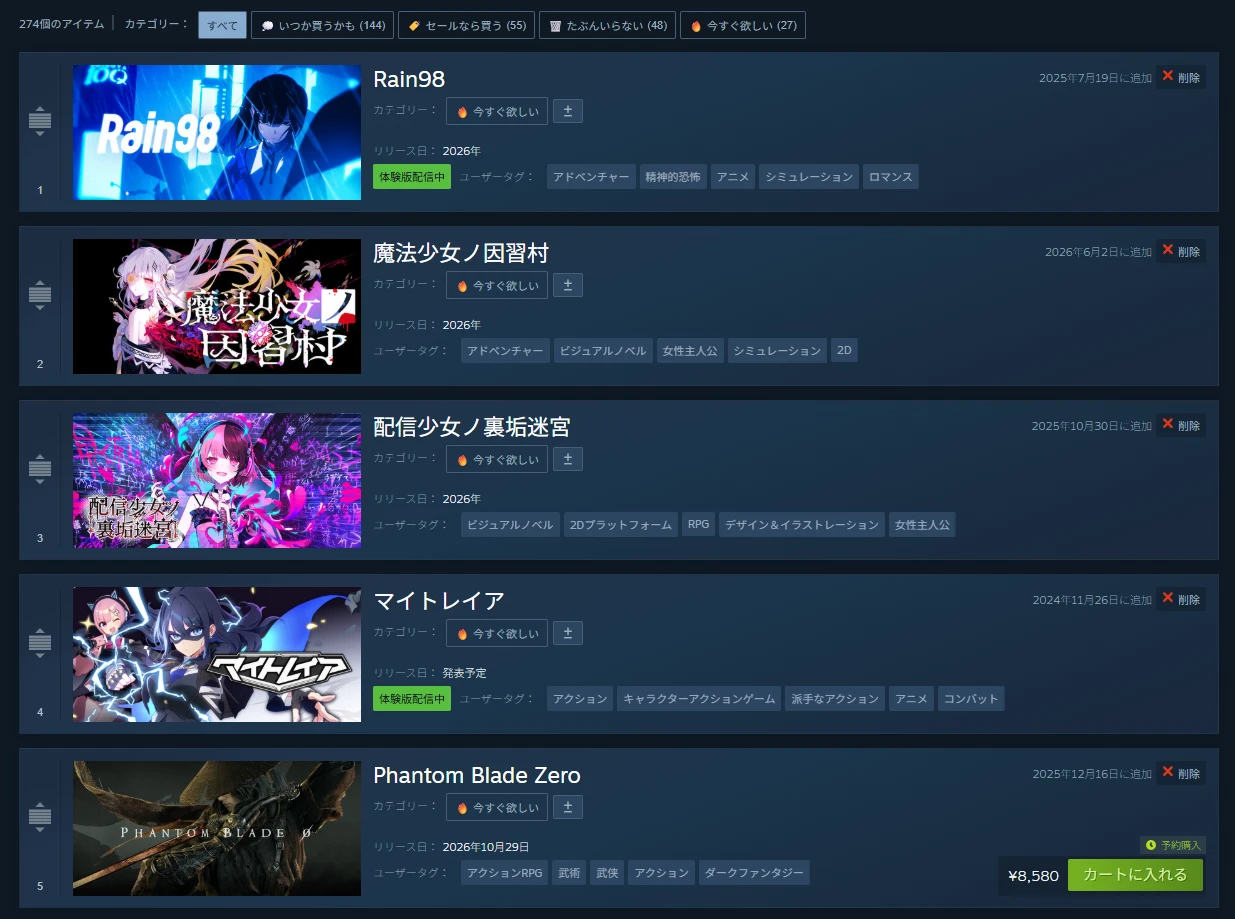
Turn on "Also add Steam categories" in the instructions, and after reordering, every game gets a category named after its tier. The tabs at the top of your Steam wishlist then let you show only "Want it now", only "Buy on sale", and so on. With hundreds of games, tagging takes a little while.
For more on categories, see Use Steam wishlist categories to catch the right sales.
Keyboard shortcuts
| Where | Keys |
|---|---|
| Pick from 4 | 1 to 4 (numpad works too) |
| 1-on-1 | ← or 1 for left, → or 2 for right |
| Undo one step | Backspace or 0 |
| End-of-round choices | Enter for the leftmost (★ recommended), 1 to 3 for the others |
Taking a break
Your progress is saved automatically in your browser. Next time, press "Continue from last time" to pick up where you left off. When you reload your wishlist later, you can keep your previous ranking and only slot in the newly added games.
Questions? See the FAQ.